Content Fragments in AEM: Models, the Editor, Variations and Delivery
Content Fragments in AEM as a Cloud Service: enabling models, the 11 data types, the Content Fragments console and editor, variations, references, publishing and delivery through GraphQL or OpenAPI.
Rewritten in October 2026 for AEM as a Cloud Service, checked against Adobe's Content Fragments documentation and release notes.
On this page
- Content Fragments vs Experience Fragments, in one paragraph
- What a Content Fragment is made of
- Step 1: enable Content Fragment Models
- Step 2: build a Content Fragment Model
- Step 3: author fragments
- Variations and references
- Step 4: publish
- Step 5: deliver the content
- What changed since AEM 6.x
- Common questions
A Content Fragment is a piece of structured content in Adobe Experience Manager that has no layout of its own: an article, a product description, a person's bio, an FAQ entry. Its fields are defined by a Content Fragment Model, and the same fragment can appear on AEM pages, in a mobile app, in a React site or in an email, each rendering it its own way. Content Fragments are the basis of headless delivery in AEM.
This guide covers Content Fragments in AEM as a Cloud Service: how to enable them, how models and the editor work, variations and references, publishing, and the ways to deliver them.
Content Fragments vs Experience Fragments, in one paragraph
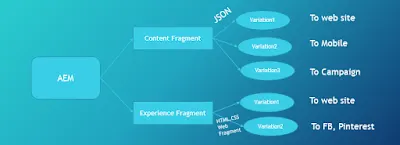
A Content Fragment is content without design: fields of text, numbers, dates and references, stored as an asset. An Experience Fragment is a laid-out group of components, a piece of a page such as a header or a promotion, stored as a page. An Experience Fragment can contain Content Fragments, but not the other way round. Use a Content Fragment when every channel should decide how the content looks, and an Experience Fragment when a block should look the same everywhere. The full comparison is in Experience Fragments in AEM, and how they differ from Content Fragments.
What a Content Fragment is made of
- A model. Every fragment is created from a Content Fragment Model, which defines its fields. Authors fill the fields in; they cannot change the structure.
- Main and variations. Every fragment has a Main version, which always exists and cannot be deleted, and any number of variations for particular channels or uses. The original editor and older tutorials call Main "Master".
- Metadata and tags.
Content Fragments are a Sites feature, but they are stored as assets under /content/dam. A detail that confuses people: a model can have fields named Title and Description, and every fragment also has built-in Title and Description properties. They are separate. The model's fields are edited in the content area of the editor, the properties in its properties panel.
Step 1: enable Content Fragment Models
- Go to Tools > General > Configuration Browser and create a configuration, or edit an existing one.
- Tick Content Fragment Models. Tick GraphQL Persisted Queries too if you will deliver through GraphQL.
- Attach the configuration to your assets folder: Folder Properties > Cloud Services > Configuration. The
globalconfiguration needs no attaching; it applies to every folder.
Without Content Fragment Models enabled in a configuration, the Create button for models does not appear.
Step 2: build a Content Fragment Model
Models are created in the Content Fragments console: open it from the global navigation and switch to Content Fragment Models in the left panel. A model needs a title and at least one field. In the model editor, drag data types into the middle column and set each field's properties on the right.
| Data type | Used for |
|---|---|
| Single line text | Short text, with an optional maximum length |
| Multi line text | Rich text, plain text or Markdown, chosen in the model |
| Number | Integers and decimals |
| Boolean | A checkbox |
| Date and time | A date, a time, or both |
| Enumeration | A fixed set of options shown as checkboxes, radio buttons or a dropdown |
| Tags | AEM tags |
| Content Reference | Any other content: an image, a page, an Experience Fragment |
| Fragment Reference | Other Content Fragments, which is how nested content is built |
| JSON Object | Raw JSON, passed through unchanged |
| Tab placeholder | Layout only: starts a new tab in the editor |
Useful field properties: Required; Unique (no two fragments of the model may share the value); Translatable; validation by regular expression, file size or image dimensions; and minimum and maximum item counts for multiple fields. A property name may contain only letters, digits and underscores, and it becomes the key in the JSON your applications receive.
Model states and locking
- An enabled model can be used to create fragments, and AEM generates a GraphQL schema for it.
- A disabled model cannot be used for new fragments, but existing fragments stay queryable.
- Once a model is published, it is locked read-only on author, because it is effectively a GraphQL schema and renaming or deleting a field breaks live queries. Unlock it in the console to edit it, after a warning. Adding a field is usually safe; renaming or removing one is not.
Which models a folder allows
In a folder's Properties > Policies tab, choose the models allowed in it, by path or by tag, or inherit the setting from the parent folder. If nothing resolves, no models are allowed and authors see an empty list. When a model doesn't show up while creating a fragment, check this first.
Step 3: author fragments
AEM as a Cloud Service has two consoles and two editors for Content Fragments. The Content Fragments console and the new Content Fragment editor are the current tools, and the new editor has been the default on production environments since 1 May 2025. Fragments can still be opened from the Assets console and in the original editor. The new console and editor exist only in the cloud, not on a local SDK.
What the new editor does:
- It saves every change automatically; there is no Save button.
- Assets can be uploaded straight into a Content Reference field.
- A version is created on every publish, and you can create one by hand. Any version can be compared with the current one and restored.
- A Structure tree shows the fragment with everything it references, and a JSON preview shows the output.
- Comments, language copies, parent references and workflow status are in side panels.
- Since release 2026.3.0, rich text uses the same editor as the Universal Editor, so both produce the same HTML. Fragments can also be checked out to prevent parallel edits.
- Generate Variations creates AI-written variants of selected content. It needs an entitlement that includes Edge Delivery Services, and each generation uses one generative action from the license. It replaced the older text summarization feature, which is removed.
In the console, fragments have five statuses: New, Draft, Published, Modified and Unpublished. You can filter by model, status or tags, search in full text or with AI search, find and replace text across many fragments, and copy a fragment with the fragments it references. A published fragment cannot be deleted until it is unpublished.
Variations and references
A variation starts as a copy of Main and is then edited, for example a shorter text for an app. Variations are stored inside the fragment. In a rich text field you can compare a variation with Main side by side and sync it from Main. The sync goes one way only, from Main to the variation, and overwrites the variation's edits.
Nested content uses Fragment References: a Team fragment lists Person fragments, an article references its author. Content References point to images, pages or Experience Fragments. The editor shows which fragments and pages reference the current one.
Adobe's best-practice limits:
- keep the number of models in the low tens;
- keep nesting to no more than ten levels;
- use no more than ten rich text fields per model, splitting into nested fragments instead;
- create no more than ten variations per fragment.
Since release 2025.2.0, fragments also have a stable UUID, and models can use UUID-based reference fields. A reference by UUID survives a fragment being moved or renamed; a path reference does not.
Step 4: publish
Fragments are published from the console or the editor, now or on a schedule, either to the publish service or to the preview service for review. Referenced fragments are published with them by default. A model is published together with the first fragment that needs it. If a model has a preview URL pattern, the editor's Preview button opens the fragment in your own application. Visual Content Fragments, added in release 2026.6.0, also let you preview a fragment through an HTML template.
Step 5: deliver the content
| Option | When to use it |
|---|---|
| AEM GraphQL API | Headless apps that pick exactly the fields they need. Use persisted queries on publish, so the CDN can cache the responses. |
| Content Fragment Delivery with OpenAPI | A REST API with references resolved in place. Switched on through Adobe Support; runs on preview and publish; fixed cache times; 200 requests per second per environment. |
| Content Fragments OpenAPIs (Sites API) | Creating and updating fragments and models from code, on author. |
| Content Fragment core component | Showing a fragment on an AEM page, as HTML, or as JSON through the Sling Model Exporter. Authors can drag a fragment onto the page and place other components between its paragraphs. |
| Edge Delivery Services | Publishing fragments as plain HTML pages on an Edge Delivery site, through a path mapping and a template. |
| Adobe Target | Exporting fragments as JSON offers for personalization. |
The Assets HTTP API (/api/assets) still answers for Content Fragments, but that use is deprecated. For a complete walkthrough from model to React app, see the AEM headless tutorial. On AEM 6.4 and 6.5, fragments were usually read through the Sling Model exporter, described in AEM 6.4 Content Fragment output as JSON.
What changed since AEM 6.x
- Fragments are managed in their own console, not only in Assets.
- "Master" is now called Main.
- The editor saves automatically, and annotations have become comments.
- Template-based (simple) fragments are deprecated; use models.
- Published models are locked.
- Fragments can be addressed by UUID as well as by path.
Common questions
Why can't I edit my Content Fragment Model?
Published models are locked to protect the GraphQL queries that depend on them. Unlock the model in the console, edit it, then republish it, which locks it again.
Why doesn't my model appear when I create a fragment?
Check that the model is enabled and that the folder's policies allow it. If the folder has no policy and inherits none, no model is allowed.
How do I get a Content Fragment as JSON?
Use a persisted GraphQL query (/graphql/execute.json/<config>/<query>), the Content Fragment Delivery OpenAPI, or the JSON export of the Content Fragment core component on a page.
Can I preview a fragment before publishing?
Yes: publish it to the preview service, open it in your app through the model's preview URL pattern, or use an HTML template.
More in Content Fragments and headless
- Experience Fragments in AEM, and How They Differ from Content Fragments
Templates, variations, building blocks, MSM, the Experience Fragment component, plain HTML and Adobe Target export.
- AEM Headless Tutorial: From Content Fragments to a React App
Configuration, models, fragments, a GraphQL endpoint, persisted queries and a React client, step by step.
- AEM GraphQL API: Endpoints, Persisted Queries and Examples
The schema from Content Fragment Models, endpoints, GraphiQL, filtering and paging, persisted queries, caching and CORS.
- AEM 6.4 Content Fragment Output as JSON
Why Content Fragments need JSON, the two kinds of fragments, and how to get JSON for a fragment and for a fragment authored on a page with the AEM 6.4 JSON exporter.
- Create a Content Services Endpoint in AEM 6.4
How to configure a Content Services endpoint in AEM 6.4 that exports Content Fragment variations as JSON for mobile apps and single-page applications.